Step-by-step help

How to use ClearImage

A practical guide to every control, from first scan to download queue.

For ClearImage v1.4.8 on desktop Chrome. The illustrated v1.4.7 controls remain unchanged; the HTTPS-only Original download rules below apply to v1.4.8.

Before you begin: Download only images you are allowed to use. ClearImage is preparing for its Chrome Web Store release; the installation link will appear after approval. Website access restrictions and image rights still apply.
Step 01

Install, pin and allow access

Once available, install ClearImage Batch Downloader from its official Chrome Web Store listing. Review Chrome’s installation prompt. In Chrome’s Extensions menu (the puzzle icon), pin ClearImage to your toolbar.

Open a normal HTTP or HTTPS webpage, then click the ClearImage toolbar icon. The extension scans automatically on first opening; ↻ Scan refreshes it. Chrome’s internal pages, the Web Store, local files and other restricted pages cannot be scanned by this version.

Permissions: activeTab and scripting read the page you invoke it on; downloads saves files; storage retains scans and jobs; offscreen prepares Original downloads and builds ZIPs. When starting Original Individual or ZIP downloads, Chrome may request access to the selected HTTPS image-host origins, which can differ from the webpage host. HTTP source webpages remain supported, but HTTP image retrieval and insecure redirects are blocked. Grant only access you trust. Manage or revoke it in Chrome’s extension details. The screenshot shows the extension after access, not Chrome’s install or permission dialog.
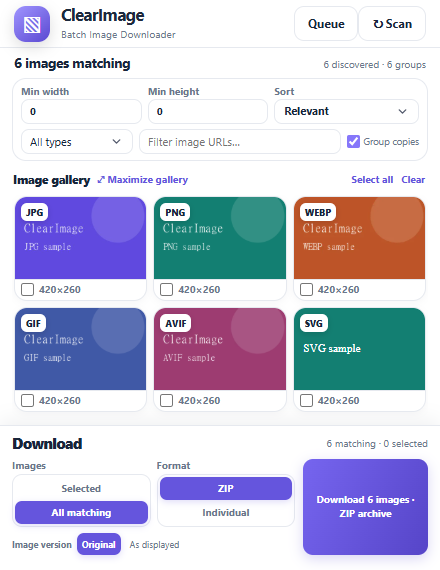
ClearImage v1.4.7 compact view with Queue and Scan, all filters, a mixed-format gallery, and download optionsOpen full-size screenshot

Actual v1.4.7 compact view. Queue opens the ZIP manager; Scan reads the current page.
Step 02

Find the images on the page

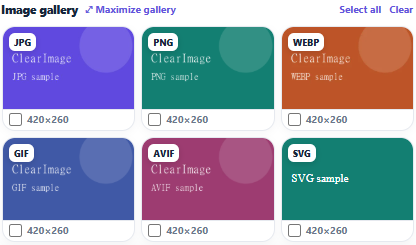
Let the page’s images load, scroll the source page to reveal lazy-loaded content, then press Scan. It checks image elements, responsive srcset candidates, common lazy-image attributes, some CSS backgrounds and direct image links.

The counters show discovered candidates, groups, and images matching your filters. A scan returns at most 3,000 candidates. It reads the main page, not every embedded frame, every background style or an entire website.

Scanning resets selections. The gallery renders the first 600 matches, but Select all and All matching can include matches beyond those visible tiles. Unknown dimensions may be excluded by minimum-size filters. For a smaller, easier-to-review batch, narrow the filters.
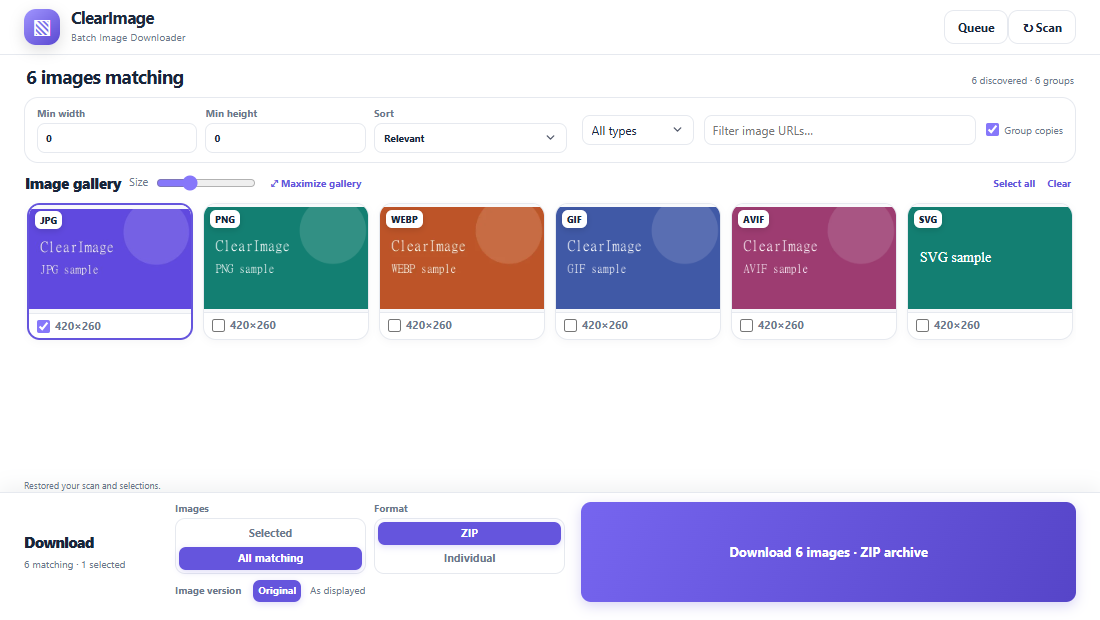
Expanded running v1.4.7 gallery containing JPG, PNG, WebP, GIF, AVIF and SVG sample imagesOpen full-size screenshot

Genuine mixed-format scan. Format badges reflect URL paths, not verified file contents.

Step 03

Refine with every filter

  • Min width / Min height: minimum detected dimensions in pixels. Start at 0 for no minimum; the fields declare a range of 0–10,000.
  • Sort: Relevant ranks source hints and detected area; Largest orders by detected pixel area; Page order retains discovery order. This is not a file-size sort.
  • Type: All types, JPG (including .jpeg), PNG, WebP, GIF, or Other. Other includes AVIF, BMP, SVG and extensionless URLs.
  • Filter image URLs: case-insensitive text search of the full URL. Clear the search to see other matches.
  • Group copies: on by default. Chooses a representative for recognized CDN image families. It is a URL-based heuristic, not visual duplicate detection. Turn it off to inspect discovered variants.
Type filtering uses the URL pathname ending. A .jpg URL can deliver different bytes, and an extensionless PNG appears under Other. Grouping happens before filtering, so a group’s chosen representative affects the matches. Check counters after every change.
Actual Min width, Min height, Relevant sort, All types, URL search and Group copies controlsOpen full-size screenshot

Size and order: minimum width, minimum height, sort. Match controls: type, URL search, grouping. These settings and gallery density are saved with the tab’s scan for the browser session.

Step 05

Choose your download method

Set each of the three options before pressing the purple download button:

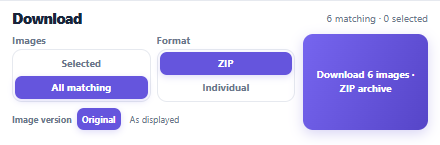
  • Images — Selected: only checked images that match the current filters. All matching: every current match, even if you have checked none.
  • Format — ZIP: numbered archives. Individual: separate browser downloads. This control selects packaging, not image conversion.
  • Image version — Original: requests the chosen source URL. It does not guarantee a site’s highest-resolution master. As displayed: captures visible pixels as PNG; see the next step.

Original individual files are prepared in the offscreen document and passed to Chrome for saving. Check download status reports completed, interrupted, active and pending requests while that job is available; batch status is kept in session storage across background-worker idling or restart; restarting Chrome clears that session state.

Saved files: relative to Chrome’s configured Downloads folder, Original individual files go to ClearImage/site_Images/. Original ZIPs use ClearImage/site_Images_YYYY-MM-DD_Part_001.zip (UTC date). Names use a numbered prefix plus useful alt/title metadata, then a source name or stable asset ID, then a fallback. Chrome makes conflicting filenames unique. Site prompts and browser settings can still affect saving.
Actual Selected and All matching scope, ZIP and Individual packaging, Original and As displayed version buttons and main download actionOpen full-size screenshot

The button count follows your scope and filters. A request accepted by Chrome is not proof of a completed save.

Step 06

Capture an image as displayed

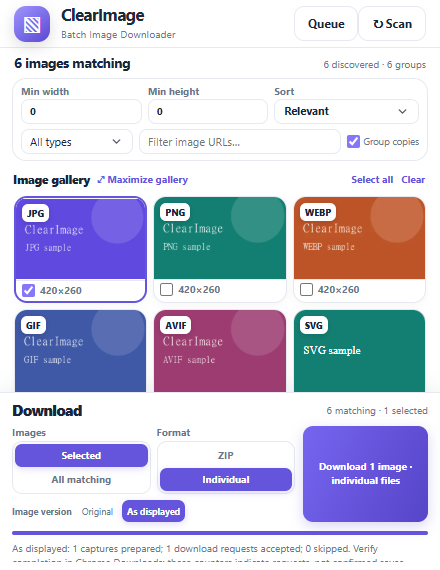
As displayed is a visible-tab screenshot crop. It captures the active source tab, then locally crops the selected image element’s rectangle into a static PNG. Visible CSS effects, text or overlapping elements inside that rectangle can be included. The full visible tab is captured temporarily before cropping.

Keep the source webpage as the active tab and the entire image inside its visible viewport. It will not scroll for you or capture hidden images. It needs a matching <img> element; a CSS background or linked-only candidate may fail. Ambiguous fallback matches are skipped.

Use the toolbar popup over the source page. An expanded gallery tab makes the source inactive and can therefore fail. Keep the popup open until processing ends. GIFs and other animations become a static captured moment. Output dimensions follow captured screen pixels and device scale.

Choose a small visible selection. Each capture is capped at 20 MiB (20,971,520 bytes). Displayed ZIPs split by the same per-part rules below, but collect captures in the open view and do not use the durable ZIP queue. Files go to ClearImage/Displayed/: 001_as_displayed.png or ClearImage_displayed_part_001.zip. Confirm final saves in Chrome Downloads. Avoid sensitive webpages.
Running v1.4.7 download controls with As displayed selected and PNG capture result statusOpen full-size screenshot

Actual As displayed selection and status from the unchanged extension; no silent fallback to Original.

Step 07

Manage Original ZIP jobs

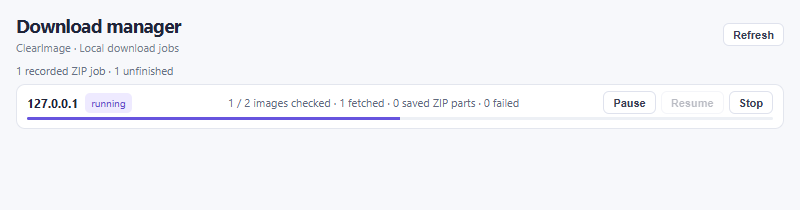
For Original + ZIP, approve the requested image hosts, then open Queue. This separate page lists recorded jobs, newest first, with checked images, fetched images, saved parts and failures. Refresh updates it manually; storage changes also update it.

  • Pause: requests a pause at the next image checkpoint. Work or a part save already underway may finish first.
  • Resume: continues a paused job while its worker remains alive.
  • Stop: stops remaining processing and may abort an active fetch. Previously saved parts remain; an unfinished in-memory part may be discarded.
  • Naming report: downloads a local JSON diagnostic after a job has diagnostic rows. It can contain image URLs, alt/title text, names and errors; review it before sharing.

If Stopping remains visible, check Chrome Downloads and contact support with that state; do not assume the remaining files were saved. One Original ZIP is processed at a time; later jobs wait. The popup can close while its offscreen worker continues. This is not a promise of restart recovery after quitting Chrome, disabling the extension or reloading it. A queued job’s controls may be disabled until it starts.

The queue covers Original ZIPs, not Original individual or As displayed downloads. “Complete” can include failed images: check the failed count and DOWNLOAD_REPORT.txt inside the archive. Records persist locally; v1.4.7 has no queue delete button or automatic expiry. No completed-file deletion is performed by Stop.
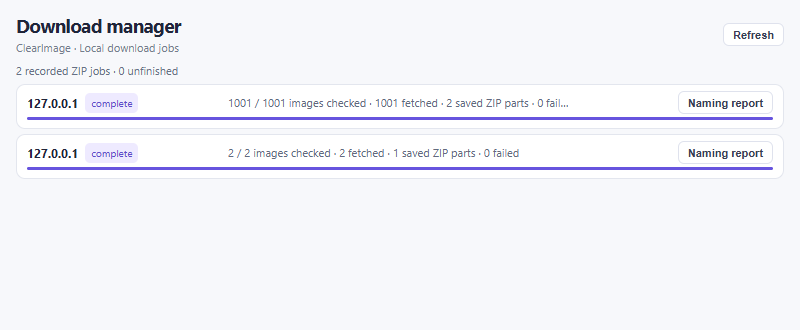
Actual ClearImage Download manager showing Original ZIP job status, progress and Pause, Resume and Stop controlsOpen full-size screenshot

Real v1.4.7 queue during a controlled local ZIP job. Disabled controls depend on job state.

Formats, ZIP splitting and limits

Real v1.4.7 queue after a local 1001-image ZIP worker test: complete, 1001 fetched, two saved ZIP parts, and Naming report
Read the result: 1001 images fetched → 2 saved ZIP parts. Naming report exports local filename diagnostics. This controlled local worker test demonstrates splitting; it does not certify every image host or Chrome permission prompt.

Original formats

Discovery explicitly recognizes JPG/JPEG, PNG, WebP, GIF, BMP, AVIF and SVG image links, and can also find HTTP(S) image URLs without extensions. Original requests HTTPS source bytes; it does not convert everything to JPG. HTTP candidates may still be discovered, but are blocked from Original retrieval. HTTPS image URLs on HTTP webpages remain eligible. Actual returned MIME type and website access matter.

ZIP validation

Original ZIP accepts image/* responses. For application/octet-stream or binary/octet-stream it additionally requires a recognized PNG, JPEG, GIF, WebP, AVIF or BMP signature. SVG served only as octet-stream is not recognized by that signature check. HTML and unknown generic bytes are rejected.

Each part: 1000 images or 50 MB

Each ZIP part allows at most 1,000 images and 50,000,000 bytes, including ZIP headers and UTF-8 filenames. Before the next entry would exceed the byte cap, or after 1000 images, another numbered part is started. Exactly equal to the byte cap is allowed.

Separate per-image cap

Original ZIP rejects empty files and files over 20 MiB (20,971,520 bytes), based on both declared and actual size. A file exactly at that cap is allowed if it fits with ZIP overhead. A single file is never divided between archives. This byte cap is not imposed on Original Individual preparation. Its 20-second network idle guard resets when data arrives, so a progressing file can take longer than 20 seconds.

Failures and reports

A failure report can take space or create a separate part; it is not an extra image. There is no separate 1,000-image whole-job cap. Jobs are bounded by scan results, available memory, storage, host access and browser behavior. A failed image can be retried as a smaller Original individual selection.

Animation and fidelity

Original can retain animation when the host returns the animated source bytes. As displayed always creates a static PNG crop. Neither mode grants rights to the image or bypasses website controls. Verify the actual downloaded files before using them.

Common problems and solutions

No images or missing images

Use a normal webpage, let it load, scroll to reveal lazy images and Scan again. Reset minimum sizes to 0, choose All types, clear URL search and try Group copies off. Restricted pages, embedded frames and inaccessible resources may not appear.

ZIP awaiting permission or starting

Review Chrome’s host-access prompt. A denied job needs a new attempt after access is allowed. If Starting remains stuck, note the status for support; reloading the extension can interrupt other active jobs.

HTTP errors or skipped images

Image hosts can require authentication, block hotlinks, redirect or return non-image content. A fetch can time out; the configured fetch timeout does not guarantee a whole-job deadline. Read the failure report, try a small selection and respect access restrictions.

Capture fails or looks different

Activate the source page, show the entire image and use the toolbar popup. Background images and ambiguous image elements may not match. A screenshot crop can include overlays and reflects the current animation frame, zoom and device scale.

Where are my downloads?

Open Chrome Downloads from its menu (Ctrl+J on Windows/Linux; Command+Shift+J on macOS). Check for interrupted saves and the configured download folder. “Requested” and “prepared” counters alone do not confirm files were saved.

Need more help?

Contact support with your Chrome and extension versions, chosen mode, counts and exact error. Remove private URLs, cookies and identifying text from screenshots or Naming reports before sharing.

Back to the first step ↑